<?xml version="1.0" encoding="utf-8"?>
<feed xmlns="http://www.w3.org/2005/Atom">
    <title>On Land bh</title>
    <link rel="alternate" type="text/html" href="http://67.20.66.170/" />
    <link rel="self" type="application/atom+xml" href="http://67.20.66.170/atom.xml" />
    <id>tag:67.20.66.170,2009-05-04://1</id>
    <updated>2009-05-04T19:21:17Z</updated>
    
    <generator uri="http://www.sixapart.com/movabletype/">Movable Type Pro 4.24-en</generator>

<entry>
    <title>I just finished installing Movable Type 4!</title>
    <link rel="alternate" type="text/html" href="http://67.20.66.170/2009/05/i-just-finished-installing-movable-type-4.php" />
    <id>tag:67.20.66.170,2009://1.1</id>

    <published>2009-05-04T19:21:17Z</published>
    <updated>2009-05-04T19:21:17Z</updated>

    <summary>Welcome to my new blog powered by Movable Type. This is the first post on my blog and was created for me automatically when I finished the installation process. But that is ok, because I will soon be creating posts...</summary>
    <author>
        <name>James Murray</name>
        
    </author>
    
    
    <content type="html" xml:lang="en-US" xml:base="http://67.20.66.170/">
        Welcome to my new blog powered by Movable Type. This is the first post on my blog and was created for me automatically when I finished the installation process. But that is ok, because I will soon be creating posts of my own!
        
    </content>
</entry>

<entry>
    <title>Meshlab For STL Files</title>
    <link rel="alternate" type="text/html" href="http://67.20.66.170/2009/04/meshlab-for-stl-files.php" />
    <id>tag:67.20.66.170,2009://1.671</id>

    <published>2009-04-24T15:12:04Z</published>
    <updated>2009-05-04T19:22:30Z</updated>

    <summary>The 3D printing consultant was fine with our 3D DXF until he got to the grade mesh. He requested that we send him an STL file, which we did not know what was. It is a 3D Stereolithography file and...</summary>
    <author>
        <name>James Murray</name>
        
    </author>
    
        <category term="Tips" scheme="http://www.sixapart.com/ns/types#category" />
    
    <category term="model" label="model" scheme="http://www.sixapart.com/ns/types#tag" />
    <category term="workflow" label="workflow" scheme="http://www.sixapart.com/ns/types#tag" />
    
    <content type="html" xml:lang="en-US" xml:base="http://67.20.66.170/">
        <![CDATA[<p>The 3D printing consultant was fine with our 3D DXF until he got to the grade mesh. He requested that we send him an STL file, which we did not know what was. It is a <a href="http://www.fileinfo.com/extension/stl">3D Stereolithography</a> file and it's common in 3D apps. Archicad doesn't support it for export. We tracked down an open-source app called <a href="http://meshlab.sourceforge.net/">MeshLab</a> which saves STL. It does not, however, open DXF. It does open 3DS. So we saved as 3DS from Archicad, opened that in MeshLab, saved as STL, done. From illiteracy to FTP upload complete in about three minutes. MeshLab is free and runs on OS X, Linux, and Windows.</p>]]>
        
    </content>
</entry>

<entry>
    <title>Old Project, New Layouts</title>
    <link rel="alternate" type="text/html" href="http://67.20.66.170/2009/04/old-project-new-layouts.php" />
    <id>tag:67.20.66.170,2009://1.670</id>

    <published>2009-04-17T19:38:30Z</published>
    <updated>2009-05-04T19:22:30Z</updated>

    <summary>What happens if you revive an ancient project and you want use the layout structure of the current template?...</summary>
    <author>
        <name>James Murray</name>
        
    </author>
    
        <category term="Documentation" scheme="http://www.sixapart.com/ns/types#category" />
    
    <category term="drawingmanager" label="drawingManager" scheme="http://www.sixapart.com/ns/types#tag" />
    <category term="layoutbook" label="layoutBook" scheme="http://www.sixapart.com/ns/types#tag" />
    <category term="organizer" label="organizer" scheme="http://www.sixapart.com/ns/types#tag" />
    <category term="views" label="views" scheme="http://www.sixapart.com/ns/types#tag" />
    
    <content type="html" xml:lang="en-US" xml:base="http://67.20.66.170/">
        <![CDATA[<p>What happens if you revive an ancient project and you want use the layout structure of the current template?</p>]]>
        <![CDATA[<div class="section">Use the Organizer to Get the Layouts</div>

<p>In another copy of AC, open the template file. You must save the project in order for the Organizer to see it. I would save it to the desktop and call it Junk.PLN.</p>

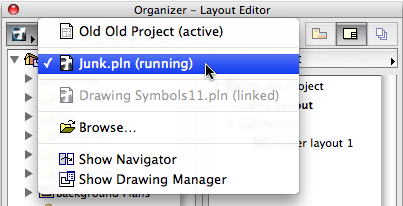
<p>In the active project, open the Organizer. In the left panel, open the junk project:</p>

<div class="captionclear">
<img src="/images/newlayouts/organizer1.png" alt="Open junk project" /><br />
</div>

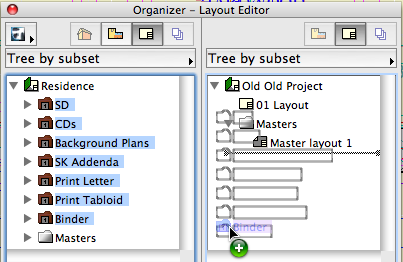
<p>Highlight the layouts and folders you want. Drag them to the layout book of the active project on the right:</p>

<div class="captionclear">
<img src="/images/newlayouts/organizer3.png" alt="Drag layouts" /><br />
</div>

<p>When a layout is dragged in, its master automatically comes with it. The layouts in the template are all set to use either C- or E-size masters; if you need D-size masters, drag them over separately.</p>

<p>Delete the default '01 Layout' from the active project, and the 'Master Layout 1'. It must be done in this order, because a master can't be deleted if it's in use.</p>

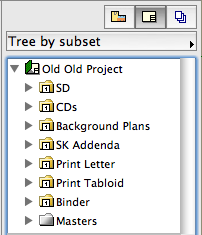
<p>Now you have orderly modern layouts:</p>

<div class="captionclear">
<img src="/images/newlayouts/organizer4.png" alt="New layouts" /><br />
</div>

<div class="section">Dispose of, or Reorient, the Imported Drawings</div>

<p>Very Important: The new imported layouts have drawings in them. In the template they were internal drawings. In the current project they become <em>external</em> drawings, whose paths refer to the template project. This has to be fixed.</p>

<p>There are two methods for this and neither of them is ideal. You can relink each drawing to the appropriate view in the project. This can't be done all at once. Alternatively, you can trash all the imported drawings and replace them manually.</p>

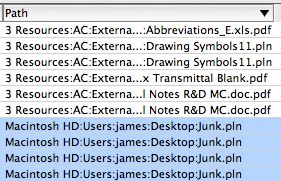
<p>To delete them: In the drawing manager, sort by Path. Highlight everything that points to the junk project on the desktop. Don't include the drawings that are supposed to be external, such as the drawing symbols:</p>

<div class="captionclear">
<img src="/images/newlayouts/sortbypath.png" alt="Sort by path" /><br />
</div>

<p>Hit the Delete button. Wait; the deletion of so many drawings takes time.</p>

<p>Then drag views to the layouts to recreate the drawings.</p>

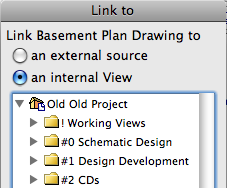
<p>To relink them: Right-click on the drawing in the layout window, the layout in the navigator, or the drawing manager. Choose 'Link Drawing to'. Select the correct view:</p>

<div class="captionclear">
<img src="/images/newlayouts/linktoview.png" alt="Link to View" /><br />
</div>

<p>About views in old projects: Depending on the age of the project, they may be present and useful, present but useless, or absent entirely. If they're present, use them, but confirm they show what you want to see. they may need to be modified. If they're absent you'll need to <a href="/archives/2006/10/creating_views.php">create them</a>. It is not possible to import views from another project, unless you mean to create an external drawing.</p>

<p>Whether you delete or relink, make positively sure that all the links to the junk project are broken.</p>

<div class="section">Check the Title Block</div>

<p>Our title block is an object placed in a worksheet. A view of this worksheet is placed as a drawing in each <em>master</em> layout of a given sheet size. We have used this scheme for quite a while, so even a very old project will likely have a title block view. (Though it might be from a detail window instead of a worksheet; that's OK.)</p>

<p>The title block object itself, however, may be out of date. Make sure to use the current object so the title block drawing fits properly on the master layout. When you switch it, hold down Cmd+Opt to preserve the parameters.</p>]]>
    </content>
</entry>

<entry>
    <title>Spotlight Calculator</title>
    <link rel="alternate" type="text/html" href="http://67.20.66.170/2009/04/spotlight-calculator.php" />
    <id>tag:67.20.66.170,2009://1.669</id>

    <published>2009-04-15T13:21:16Z</published>
    <updated>2009-05-04T19:22:30Z</updated>

    <summary>Does everybody know that you can do calculator actions directly in Spotlight in Leopard? I use it for arithmetic, but it will do most scientific functions if you know the syntax. Trig functions are intuitive, but others (pow(x,y) for xy...</summary>
    <author>
        <name>James Murray</name>
        
    </author>
    
        <category term="Mac OS" scheme="http://www.sixapart.com/ns/types#category" />
    
    <category term="calculate" label="calculate" scheme="http://www.sixapart.com/ns/types#tag" />
    <category term="osx" label="OSX" scheme="http://www.sixapart.com/ns/types#tag" />
    <category term="tip" label="tip" scheme="http://www.sixapart.com/ns/types#tag" />
    
    <content type="html" xml:lang="en-US" xml:base="http://67.20.66.170/">
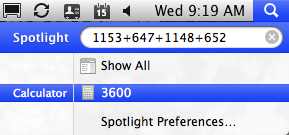
        <![CDATA[<p>Does everybody know that you can do calculator actions directly in Spotlight in Leopard?</p>

<div class="captionclear">
<img src="/images/spotlightcalc.png" alt="Spotlight Calculator" /><br />
</div>

<p>I use it for arithmetic, but it will do most scientific functions if you know the syntax. Trig functions are intuitive, but others (<em>pow(x,y)</em> for x<sup>y</sup> instead of <em>x^y</em>) are less so to me. As usual, intuitiveness is in inverse proportion to the need to know syntax. Search Calculator's help for 'abbreviations' to see a complete list of functions.</p>]]>
        
    </content>
</entry>

<entry>
    <title>Element ID Trivia</title>
    <link rel="alternate" type="text/html" href="http://67.20.66.170/2009/04/element-id-trivia.php" />
    <id>tag:67.20.66.170,2009://1.667</id>

    <published>2009-04-03T17:17:12Z</published>
    <updated>2009-05-04T19:22:30Z</updated>

    <summary>All 3D elements have a User ID, known simply as the &apos;ID&apos;. It can be observed and edited in the Info Box (near the top in our setup) and in the Settings dialog under the Listing And Labeling division. The...</summary>
    <author>
        <name>James Murray</name>
        
    </author>
    
        <category term="ArchiCAD" scheme="http://www.sixapart.com/ns/types#category" />
    
    <category term="acessentials" label="ACessentials" scheme="http://www.sixapart.com/ns/types#tag" />
    <category term="id" label="ID" scheme="http://www.sixapart.com/ns/types#tag" />
    
    <content type="html" xml:lang="en-US" xml:base="http://67.20.66.170/">
        <![CDATA[<p>All 3D elements have a User ID, known simply as the 'ID'. It can be observed and edited in the Info Box (near the top in our setup) and in the Settings dialog under the Listing And Labeling division.</p>

<p>The only 2D element with an ID is the Fill.</p>

<p>I wish other 2D elements had IDs. Then I could 'name' topo contours after their elevations.</p>

<p>You can access the ID field of a selected element by typing 'I'.</p>

<p>If the default settings ID ends with a number, the number will increment (increase by one) as elements are placed. Unless you switch off this preference in Preferences -> Miscellaneous. N.B.: The numbers will only cycle through the available numeric places. I.e., ABC9 will be followed by ABC0, but ABC09 will be followed by ABC10.</p>

<p>The default IDs of the tools in your templates should consist of an identifier for the tool (E.g., 'Roof' or 'R') followed by at least two digits, maybe three. This gives the incrementing room to operate.</p>

<p>Other than the automatic increment, Archicad never changes IDs by itself, and there's no problem with elements having identical IDs. (<a href="http://www.onland.info/archives/2007/10/viewpoint_ids_what_for.php">This is different from viewpoints</a>, where the name/ID combination must be unique.) When you drag-copy or multiply an element, the copies will have the same ID as the original. When you eyedropper (alt/opt+click) an element, the ID of the next element will match, but the next one will increment, assuming the switch is on.</p>

<p>The ID is picked up by the eyedropper, but an existing element's ID isn't changed by the syringe.</p>

<p>I keep that Auto-increase preference on, and the only time it bugs me is when I'm placing <a href="/archives/2005/08/shape_tag_jm9.php">Shape Tag</a> objects for revisions, and I have to make sure the triangles say 2, 2, 2 instead of 2, 3, 4. (Really, that's just an illustration, because that object has a setting to use a custom text instead of the ID, but using the ID is easier because you edit it directly by typing 'I', bla bla bla)</p>

<p>Letter IDs do not increment, which makes sense now that I think of it. (WALL, WALM, WALN,... that's no good.)</p>

<p>If an element has an error in it, the ID will often appear in the report window warning. This is helpful, because you can use Find and Select to find elements by their ID, then track down the problem from there.</p>

<p>When you're searching for errant elements in this way, you will probably find many of a given ID, because of the drag-copying and eyedroppering described above. To isolate the troublemakers further, you can <a href="http://www.onland.info/archives/2007/12/find_problem_elements_with_a_schedule.php">manage element IDs using a schedule</a>.</p>

<p>We schedule doors and windows by their IDs, and you can change IDs directly within the schedule.</p>

<p>The only element type we deliberately give a blank ID is doors and windows we want to leave out of the schedule. This includes empty openings and weird openings like <a href="/archives/2005/07/trim_panel_jm9.php">trim panels</a>.</p>

<p>Zones have the same ID field as other model elements, but we ignore it in favor of the Zone Number field.</p>

<p>The GDL global variable for user ID is GLOB_ID. Elements also have an internal unique ID which is unmodifiable and invisible except in GDL. That global is GLOB_INTGUID. (I promised you trivia.) I can't recall using that one, but you need GLOB_ID all the time for markers and labels.</p>]]>
        
    </content>
</entry>

<entry>
    <title>Surface Map of Pluto</title>
    <link rel="alternate" type="text/html" href="http://67.20.66.170/2009/03/surface-map-of-pluto.php" />
    <id>tag:67.20.66.170,2009://1.666</id>

    <published>2009-03-13T16:40:56Z</published>
    <updated>2009-05-04T19:22:30Z</updated>

    <summary></summary>
    <author>
        <name>James Murray</name>
        
    </author>
    
        <category term="Other" scheme="http://www.sixapart.com/ns/types#category" />
    
    <category term="astronomy" label="astronomy" scheme="http://www.sixapart.com/ns/types#tag" />
    
    <content type="html" xml:lang="en-US" xml:base="http://67.20.66.170/">
        <![CDATA[<div class="photobox"><a href="http://blogs.discovermagazine.com/badastronomy/2009/03/13/ten-things-you-dont-know-about-pluto/?pid=42"><img alt="Surface Map of Pluto" src="/images/plutosurface.png"  /></a></div>]]>
        
    </content>
</entry>

<entry>
    <title>Railing Updates</title>
    <link rel="alternate" type="text/html" href="http://67.20.66.170/2009/03/railing-updates.php" />
    <id>tag:67.20.66.170,2009://1.665</id>

    <published>2009-03-03T18:39:23Z</published>
    <updated>2009-05-04T19:22:30Z</updated>

    <summary><![CDATA[Two tweaks to the Railing JM9 object. &bull; Linify balusters. That word is made up. Hidden under the Baluster Width parameter you will find a checkbox to 'linify' the balusters. This replaces the rectangular baluster with a single 3D line....]]></summary>
    <author>
        <name>James Murray</name>
        
    </author>
    
        <category term="Objects" scheme="http://www.sixapart.com/ns/types#category" />
    
    <category term="objectupdate" label="objectUpdate" scheme="http://www.sixapart.com/ns/types#tag" />
    <category term="railing" label="railing" scheme="http://www.sixapart.com/ns/types#tag" />
    <category term="stair" label="stair" scheme="http://www.sixapart.com/ns/types#tag" />
    
    <content type="html" xml:lang="en-US" xml:base="http://67.20.66.170/">
        <![CDATA[<p>Two tweaks to the <a href="/archives/2005/03/railing_jm9.php">Railing JM9</a> object.</p>

<div class="captionleft">
<img src="/images/linified.png" alt="Linified balusters" /><br />
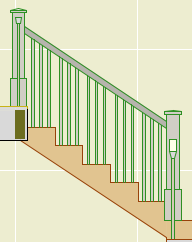
</div>&bull; <strong>Linify</strong> balusters. That word is made up. Hidden under the Baluster Width parameter you will find a checkbox to 'linify' the balusters. This replaces the rectangular baluster with a single 3D line. The only occasion to use this option is a hidden line or sketch-render 3D view, where the normal 2-3 lines of each baluster can look too heavy. It is unacceptable for construction documents, so remember to switch it back after you create your image. If we had customizable Model View Options, I would have one for 'Resolution' or 'Level of Detail', then hook linification to that.
<p class="left"></p>

<div class="captionleft">
<img src="/images/clustered.png" alt="Clustered balusters" /><br />
</div>&bull; <strong>Cluster on Treads</strong> for balusters. For a sloped railing with three balusters per tread, this option puts less space between the triplets than between the groups. The <strong>Distance</strong> parameter defines how much closer they are. Make sure the big space still meets code; the object does not check for this.
<p class="left"></p>]]>
        
    </content>
</entry>

<entry>
    <title>Linetype Sorting</title>
    <link rel="alternate" type="text/html" href="http://67.20.66.170/2009/02/linetype-sorting.php" />
    <id>tag:67.20.66.170,2009://1.664</id>

    <published>2009-02-11T15:37:22Z</published>
    <updated>2009-05-04T19:22:30Z</updated>

    <summary>Somebody asked: I have finally gotten frustrated enough with the way line types are (dis)organized to focus some effort on it. Have you figured out any tricks to getting line types to show up in any logical sequence at all...</summary>
    <author>
        <name>James Murray</name>
        
    </author>
    
        <category term="ArchiCAD" scheme="http://www.sixapart.com/ns/types#category" />
    
    <category term="attributemanager" label="attributeManager" scheme="http://www.sixapart.com/ns/types#tag" />
    <category term="interface" label="interface" scheme="http://www.sixapart.com/ns/types#tag" />
    <category term="problems" label="problems" scheme="http://www.sixapart.com/ns/types#tag" />
    
    <content type="html" xml:lang="en-US" xml:base="http://67.20.66.170/">
        <![CDATA[<p>Somebody asked:</p>

<blockquote>I have finally gotten frustrated enough with the way line types are (dis)organized  to focus some effort on it. Have you figured out any tricks to getting line types to show up in any logical sequence at all in your files? I can't believe that after all this time GS hasn't just made it alphabetical. How hard can that be...?</blockquote>

<p>Linetypes are sorted by their internal ID. All attributes (pens, materials, fills, etc.) have an internal ID. This ID is never visible in the general Archicad interface, though it winds up being very important. In settings dialogs, object parameters, and within other attributes (E.g., a composite uses a fill), the ID is what matters, not the name. The only place you can view and (sort of) manipulate IDs in in the <a href="/archives/2004/06/attribute_manag.php">Attribute Manager</a>.</p>

<p>The other attribute types sort alphabetically in their lists, but for some reason linetypes don't. There's no excuse for this from the user's perspective, but you've probably noticed it's not the only charming eccentricity of AC's interface.</p>

<p>If you want the linetypes list to sort in a predictable way, you will need to hack their IDs. This is both <a href="/archives/2006/06/what_i_go_through_for_these_attribute_ids_you_wouldnt_believ.php">a pain in the chair</a> and not entirely free of risk.</p>

<p>If you change the geometry and/or name of the linetype at ID #4, all placed instances of linetype #4 in the project will change. If library objects have linetype #4 in their default parameters, suddenly they will have new defaults in those linetype parameters. <em>Elements only care about IDs.</em> Modifying libraries to adapt to such a change is prohibitive. Where the Archicad library is concerned, it's practically impossible because it's bad form to modify it at all. And, if you modify your own library, you have to be wary of affecting past projects going back however far, should you ever reopen them.</p>

<p>I did try to sort my linetypes a few years back. I survived, because we don't actually use very many, and I did some investigation to see what linetypes the AC library cares about. There is compromise involved. Our primary dashed line is at ID #2, but the AC library expects a dashed line at ID #4. If I put something else at ID #4, AC objects will display that instead of a dashed line. If I delete ID #4, those objects will have a missing linetype, which renders as solid, same problem. Meanwhile I can't abandon ID #2 because my libraries are hooked to that. So I'm stuck with two dashed linetypes at the top of my list, nothing I can do.</p>

<p>One more thing: If you do whip your list into shape, it will still be <em>two</em> lists, with the symbolic types following the vector types. Like symbolic and vector fills, that sorting can't be hacked.</p>

<p>As for how hard it might be for GS to fix this sort of thing, well, empirically it looks impossible. Hope to proved wrong.</p>]]>
        
    </content>
</entry>

<entry>
    <title>Glass Lines JM11</title>
    <link rel="alternate" type="text/html" href="http://67.20.66.170/2009/01/glass-lines-jm11.php" />
    <id>tag:67.20.66.170,2009://1.663</id>

    <published>2009-01-09T15:14:53Z</published>
    <updated>2009-05-04T19:22:30Z</updated>

    <summary> Location: 01 General / 1 Graphic Symbols Another one for the well-under-4KB* series... The length of the object is the length of the long line. The length of the short line is set by the Short Line Factor parameter....</summary>
    <author>
        <name>James Murray</name>
        
    </author>
    
        <category term="Objects" scheme="http://www.sixapart.com/ns/types#category" />
    
    <category term="annotation" label="annotation" scheme="http://www.sixapart.com/ns/types#tag" />
    <category term="download" label="download" scheme="http://www.sixapart.com/ns/types#tag" />
    <category term="interiors" label="interiors" scheme="http://www.sixapart.com/ns/types#tag" />
    
    <content type="html" xml:lang="en-US" xml:base="http://67.20.66.170/">
        <![CDATA[<div class="captionleft">
<img src="/images/glasslines.png" alt="Glass Lines" /><br />
</div><em>Location: 01 General / 1 Graphic Symbols</em>

<p>Another one for the well-under-4KB* series...</p>

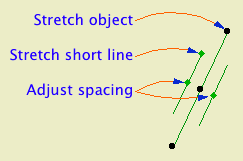
<p>The length of the object is the length of the long line. The length of the short line is set by the <strong>Short Line Factor</strong> parameter. You can adjust this factor graphically. The spacing of the lines is controlled by the <strong>Spacing</strong> parameter. Also graphi-justable.</p>

<p>This is a good one to place with the rotate and stretch geometry method (fourth button). With this method I had an intermittent glitchy behavior where the object would appear offset from my clicks, but I couldn't reproduce it.</p>

<p>I wanted to add this symbol to our doors and windows directly, but I don't think it's possible to force the lines to tilt rightward in every case, once you factor in the orientation of the door and the viewpoint and all that.</p>

<p><a href="http://www.onland.info/dl/glass_lines_jm11.gsm.zip">Download</a> (AC11)</p>

<p>* Until you add the preview image.</p>]]>
        
    </content>
</entry>

<entry>
    <title>Slabifying Lines</title>
    <link rel="alternate" type="text/html" href="http://67.20.66.170/2008/12/slabifying-lines.php" />
    <id>tag:67.20.66.170,2008://1.662</id>

    <published>2008-12-19T19:07:22Z</published>
    <updated>2009-05-04T19:22:30Z</updated>

    <summary>Converting 2D elements for use in 3D. Any 3D element(s) can be saved as an object with the Save Project As... menu command. (In Archicad 11, Save 3D Model As...) This technique is known as &apos;slabifying&apos; since such models are...</summary>
    <author>
        <name>James Murray</name>
        
    </author>
    
        <category term="GDL" scheme="http://www.sixapart.com/ns/types#category" />
    
        <category term="Howto" scheme="http://www.sixapart.com/ns/types#category" />
    
        <category term="Objects" scheme="http://www.sixapart.com/ns/types#category" />
    
    <category term="3dwindow" label="3Dwindow" scheme="http://www.sixapart.com/ns/types#tag" />
    <category term="dwg" label="DWG" scheme="http://www.sixapart.com/ns/types#tag" />
    <category term="gdl" label="GDL" scheme="http://www.sixapart.com/ns/types#tag" />
    <category term="objectmaking" label="objectMaking" scheme="http://www.sixapart.com/ns/types#tag" />
    <category term="slabify" label="slabify" scheme="http://www.sixapart.com/ns/types#tag" />
    
    <content type="html" xml:lang="en-US" xml:base="http://67.20.66.170/">
        <![CDATA[<p><em>Converting 2D elements for use in 3D.</em></p>

<div class="captionleft">
<img src="/images/slabifylines/treesketch1.png" alt="Tree sketch" /><br />
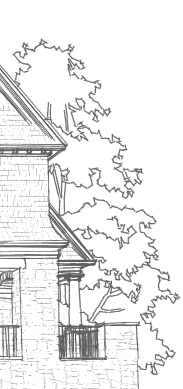
</div><p>Any 3D element(s) can be saved as an object with the Save Project As... menu command. (In Archicad 11, Save 3D Model As...) This technique is known as '<a href="/archives/2003/08/object_from_a_s.php">slabifying</a>' since such models are often built from slabs. Objects saved in this way are dumb (not parametric), <a href="/archives/2006/10/slabified_window.php">but it's still a useful trick</a>.</p>

<p>2D elements can't be saved this way, because they never appear in the 3D window, where 3D object saving takes place. Despite the fact that GDL contains commands for 'flat' shapes in 3D, including LIN_ (a line) and PLANE (not a joinery implement). But there is a workaround for 'slabifying lines'. When you open a 2D DWG as an object, 2D lines are created as LIN_ statements in the 3D script. When you place the object in the model, you get the 2D geometry in 3D.</p>

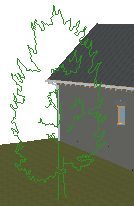
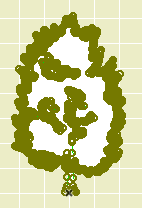
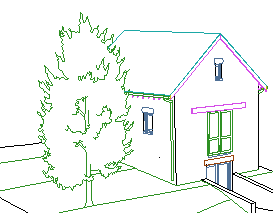
<p>It's that simple at it's simplest, but real world applications need some tweaking. In this example, I'm converting an Archicad library 2D tree elevation symbol so I can use it in a sketch render image. Other applications might be a complex ornament in a hidden line elevation, or a busy glazing design placed in front of a conventional window.</p>
<p class="left"></p>]]>
        <![CDATA[<div class="section">The Basics</div>

<div class="captionleft">
<img src="/images/slabifylines/treesymobject.png" alt="Tree symbol object" /><br />
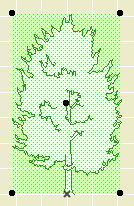
</div>Here's the 2D tree object, <strong>Tree 2 Elev 11</strong>. It's centered on the global origin, so the object geometry will be centered around the object's origin. Tip: Do this work in a worksheet, so you don't have to worry about other elements when you save the DWG.
<p class="left"></p>

<p>Do a Save As in DWG format. I use the same translator we use for most export cases.</p>

<p>Open that DWG using the Open Object command on the File -> Libraries and Objects menu. The resulting object is untitled and consists of:</p>

<p>&bull; The original 2D geometry in the 2D symbol window.</p>

<p>&bull; Some error checking code in the 2D script, along with a FRAGMENT2 command to draw the content of the 2D symbol window.</p>

<div class="captionleft">
<img src="/images/slabifylines/lins.png" alt="Lin_s" /><br />
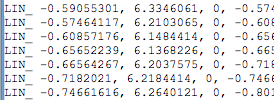
</div>&bull; More error checking code in the 3D script, followed by a LIN_ statement for each line in the original geometry. (In the tree symbol there are several hundred of these. This is the good stuff.)
<p class="left"></p>

<p>&bull; A bunch of TR3D parameters in the main window, which I don't understand.</p>

<p>(More on the GDL environment and the various windows <a href="/archives/2004/12/structure_of_ob.php">here</a>.)</p>

<p>These are the basic modifications to the object:</p>

<p>&bull; Delete the TR3D parameters.</p>

<p>&bull; Delete the top of the 3D script; everything before the first LIN_ statement. The last junk line is probably a PEN directive like 'PEN 10'.</p>

<p>&bull; Above the first LIN_ statement, add the code 'ROTx 90'. This rotates the geometry up from horizontal to vertical.</p>

<p>&bull; Delete the entire 2D script.</p>

<div class="captionleft">
<img src="/images/slabifylines/treelines3d.png" alt="Tree lines 3D" /><br />
</div>This is the bare minimum required to get lines in 3D.
<p class="left"></p>

<p>We can find several things to fix.</p>

<div class="section">The Plan Symbol Is Bugging Me</div>

<p>The default behavior of DWG objects is to show the same geometry in the 2D symbol and the 3D model. We flipped the 3D lines to vertical, but the plan symbol is still lying flat.</p>

<div class="captionleft">
<img src="/images/slabifylines/rotatetree.png" alt="Rotate tree" /><br />
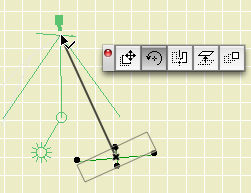
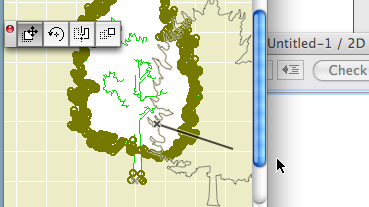
</div>I'm going to use this tree differently from the symbols for real trees in the site plan. Most important is the ability to make the tree face the camera for the sketch rendering.

<p>This cross symbol is done with some very simple code in the 2D script. The long line represents the width of the tree geometry, and the short perpendicular lines let me rotate the object precisely toward the camera.<br />
<p class="left"></p></p>

<p>Here's the code:</p>

<div class="codebox">
<code>

<p>!! Nodes along main line<br />
HOTSPOT2 0, 0<br />
HOTSPOT2 A/2, 0<br />
HOTSPOT2 -A/2, 0</p>

<p>!! Lines of cross<br />
LINE2 -A/2, 0, A/2, 0<br />
LINE2 0, A/8, 0, -A/8</p>

<p>!! Nodes of perpendicular line   <br />
HOTSPOT2 0, -A/8<br />
HOTSPOT2 0, A/8<br />
</code><br />
</div></p>

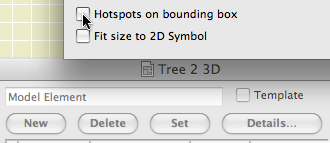
<p>I also want to turn off the 'four corners' nodes in the plan symbol. These are the default nodes in case there are no HOTSPOT2 statements in the 2D script. To turn them off, click the 'Details' button at the top of the main object editing window, and uncheck 'Hotspots on bounding box':</p>

<div class="captionclear">
<img src="/images/slabifylines/boundingspots.png" alt="Bounding Spots" /><br />
</div><br />

<p>If I did want to see a real tree symbol in the plan, I would have the 3D flat tree object 'call' the regular 2D tree symbol object. That's not too tricky, but it is out of scope at the moment.</p>

<div class="section">The Object Should Be Stretchy</div>

<p>When the DWG was opened as an object, the line geometry was created at the same size as the original symbol. We can add some simple code to make the tree stretchy while maintaining its proportions.</p>

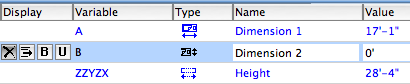
<p>First we need to make sure the default dimensions of the new 3D object reflect the actual dimensions of the geometry, which will be the same as the dimensions of the original symbol object. This tree has a width of 17'-1"; that value goes in the A parameter. The height is 28'-4"; that value goes in the ZZYZX parameter. The B parameter is not used and can be hidden using its 'X' button.</p>

<div class="captionclear">
<img src="/images/slabifylines/defaultdims.png" alt="Default dims" /><br />
</div><br />

<p>This 3D script code lets a change in the height of the tree force a proportional change in the width. The MUL statements find the ratio of the new height to the default height, and shrink or enlarge the height and width accordingly:</p>

<div class="codebox">
<code>

<p>ROTx 90 !!flip up to vertical</p>

<p>MULx ZZYZX/28.33' !!adjust width<br />
MULy ZZYZX/28.33' !!adjust height</p>

<p>LIN_ -0.59055301, 6.3346061, ....</p>

<p></code><br />
</div></p>

<p>This is the quick/dirty approach. The width of the object will change, but you won't see that reflected in the width parameter.</p>

<p>This code will keep the two dimensions in proportion when either one is changed. This goes in the Master Script:</p>

<div class="codebox">
<code>

<p>IF GLOB_MODPAR_NAME='A' THEN !!when width changes do this<br />
ZZYZX=ZZYZX*(A/17.083') !!adjust height proportional with new width<br />
PARAMETERS ZZYZX=ZZYZX !!update height parameter in settings<br />
ENDIF !!done</p>

<p>IF GLOB_MODPAR_NAME='ZZYZX' THEN !!when height changes do this<br />
A=A*(ZZYZX/28.33') !!adjust width proportional with new height<br />
PARAMETERS A=A !!update width parameter in settings<br />
ENDIF !!done</p>

<p></code><br />
</div></p>

<p>The 3D code is the same as above.</p>

<p>With this code you can stretch the object in plan or 3D, or edit the size in the settings, and the object should keep its proportion.</p>

<p>What if we wanted to stretch the height and width independently? In this case, get rid of that Master Script code and change the 3D code to this:</p>

<div class="codebox">
<code>

<p>ROTx 90 !!flip up to vertical</p>

<p>MULx A/17.083' !!adjust width<br />
MULy ZZYZX/28.33' !!adjust height</p>

<p>LIN_ -0.59055301, 6.3346061, ....</p>

<p></code><br />
</div></p>

<div class="section">Another Thing, It's Transparent</div>

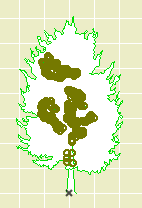
<p>The tree object itself can contains a fill (user-hostile screen background color by default), but the automatic DWG object doesn't convert it, so the new 3D object is transparent. We want a paper doll tree that can mask elements beyond.</p>

<p>The solution is to add a PLANE statement to the 3D script in the shape of the tree object's fill. It's a bit more work. We will drag-and-drop the fill to make the PLANE and outline, while using the DWG method for the interior lines.</p>

<div class="captionleft">
<img src="/images/slabifylines/treegroup.png" alt="Tree lines and fill" /><br />
</div>1. Explode the object. This results in a bunch of lines and a fill.
<p class="left"></p>

<div class="captionleft">
<img src="/images/slabifylines/treeintlines.png" alt="Tree interior lines" /><br />
</div>2. Gather up the interior lines of the symbol. Tip: Use the under-appreciated polygon method of the arrow tool. Save these lines as a DWG, and open the resulting file as an object, like above.
<p class="left"></p>

<p>3. Drag-and-drop the fill to get the PLANE geometry:</p>

<p>&bull; Create a new object. (File -> Libraries and Objects -> New Object) Open the 2D script window. Arrange the windows so the drawing window and the 2D script are both visible. Use the arrow tool to drag the fill element to the 2D script window:</p>

<div class="captionclear">
<img src="/images/slabifylines/dragfill.png" alt="Drag fill" /><br />
</div><br />

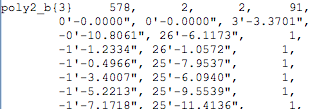
<p>This will result in a (very lengthy, again) POLY2_B{3} statement:</p>

<div class="captionclear">
<img src="/images/slabifylines/poly2code.png" alt="Poly2 code" /><br />
</div><br />

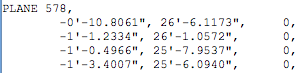
<p>&bull; Both POLY2 and PLANE (among many others) use a list of coordinate locations to draw a polygon. We can use a find-and-replace trick to turn POLY2 coordinates into PLANE coordinates. In the auto-generated code, the coordinates begin on the third line.  Do a Find and Replace (on the Edit menu), replacing "   1," with "   0," (That's three spaces at the beginning of each.) You should see the change on each coordinate line. Copy all the coordinate lines to the clipboard. (Cmd+C) Also, make note of the number on the first line, right after the POLY2_B{3}.<br />
<p class="left"></p></p>

<p>&bull; Open the DWG object with the interior lines. In the 3D script, following all the LIN_ stuff, type 'PLANE', then a space, then the number from the POLY2_B{3}, then a comma. Hit return, then Paste in the coordinate code:</p>

<div class="captionclear">
<img src="/images/slabifylines/planecode.png" alt="Plane code" /><br />
</div><br />

<p>The PLANE draws the opaque polygon and the outline, while the LIN_ code draws the interior lines.</p>

<div class="captionclear">
<img src="/images/slabifylines/masktree.png" alt="Masking tree" /><br />
</div><br />]]>
    </content>
</entry>

<entry>
    <title>Interface Miscellany</title>
    <link rel="alternate" type="text/html" href="http://67.20.66.170/2008/11/interface-miscellany.php" />
    <id>tag:67.20.66.170,2008://1.661</id>

    <published>2008-11-17T13:31:22Z</published>
    <updated>2009-05-04T19:22:29Z</updated>

    <summary>Autogroup: On Hide locked layers: Yes Pet Palette movement: Jump Tracker: Off Coordinate Box: On XY Button: Up RA Button: Down Move the origin a lot: Yes Do that thing where you rest the cursor on a point and enter...</summary>
    <author>
        <name>James Murray</name>
        
    </author>
    
        <category term="ArchiCAD" scheme="http://www.sixapart.com/ns/types#category" />
    
    <category term="interface" label="interface" scheme="http://www.sixapart.com/ns/types#tag" />
    <category term="tip" label="tip" scheme="http://www.sixapart.com/ns/types#tag" />
    
    <content type="html" xml:lang="en-US" xml:base="http://67.20.66.170/">
        <![CDATA[<p>Autogroup: On<br />
Hide locked layers: Yes<br />
Pet Palette movement: Jump<br />
Tracker: Off<br />
Coordinate Box: On<br />
XY Button: Up<br />
RA Button: Down<br />
Move the origin a lot: Yes<br />
Do that thing where you rest the cursor on a point and enter distances followed by + or -: No<br />
Magnet: On<br />
Info Box: Vertical<br />
Navigator Preview: Off<br />
Quick Layers: Off (Toolbar buttons)<br />
Surface highlight selection: On<br />
Contour highlight selection: Off<br />
Info Tag: On, 100 second delay</p>

<p>I guess Autogroup isn't really an interface thing.</p>]]>
        
    </content>
</entry>

<entry>
    <title>Jack o Lantern JM11</title>
    <link rel="alternate" type="text/html" href="http://67.20.66.170/2008/10/jack-o-lantern-jm11.php" />
    <id>tag:67.20.66.170,2008://1.660</id>

    <published>2008-10-31T17:07:59Z</published>
    <updated>2009-05-04T19:22:29Z</updated>

    <summary> Materials for rind, flesh, and stem. Expression can be happy or sad. I&apos;ve had this for nine years; I finally took the inline material definitions out. Download (AC11)...</summary>
    <author>
        <name>James Murray</name>
        
    </author>
    
        <category term="Objects" scheme="http://www.sixapart.com/ns/types#category" />
    
    <category term="pumpkin" label="pumpkin" scheme="http://www.sixapart.com/ns/types#tag" />
    
    <content type="html" xml:lang="en-US" xml:base="http://67.20.66.170/">
        <![CDATA[<div class="captionleft">
<img src="/images/hap.png" alt="Jack" /><br />
</div><p>Materials for rind, flesh, and stem. <strong>Expression</strong> can be happy or sad. I've had this for nine years; I finally took the inline material definitions out.</p>

<p><a href="/dl/jack_o_lantern_jm11.gsm.zip">Download</a> (AC11)</p>]]>
        
    </content>
</entry>

<entry>
    <title>Don&apos;t Redo VR Objects While They&apos;re Open</title>
    <link rel="alternate" type="text/html" href="http://67.20.66.170/2008/10/dont-redo-vr-objects-while-theyre-open.php" />
    <id>tag:67.20.66.170,2008://1.659</id>

    <published>2008-10-27T14:28:08Z</published>
    <updated>2009-05-04T19:22:29Z</updated>

    <summary>The other day I had a puzzling problem with VR objects saved out of Archicad. Some files would open in QuickTime as conventional movie files rather than VR objects. (Press play and the building spins around once for each parallel....</summary>
    <author>
        <name>James Murray</name>
        
    </author>
    
        <category term="Problems" scheme="http://www.sixapart.com/ns/types#category" />
    
    <category term="output" label="output" scheme="http://www.sixapart.com/ns/types#tag" />
    <category term="problems" label="problems" scheme="http://www.sixapart.com/ns/types#tag" />
    <category term="tip" label="tip" scheme="http://www.sixapart.com/ns/types#tag" />
    
    <content type="html" xml:lang="en-US" xml:base="http://67.20.66.170/">
        <![CDATA[<p>The other day I had a puzzling problem with VR objects saved out of Archicad. Some files would open in QuickTime as conventional movie files rather than VR objects. (Press play and the building spins around once for each parallel. It runs about five seconds. It's not making any sales.)</p>

<p>As is often the case with puzzling intermittent problems, I was working too fast and not paying attention. After running a VR and viewing it in QuickTime, I would return to AC and run it again. Trouble is, sometimes I left the VR open. It took me an embarrassing while to figure out that those VRs were winding up corrupted on the second pass. In further testing, sometimes the VRs would be too corrupt even to open.</p>

<p>So the concrete tip is: Don't redo VR objects while they're open. Maybe this is 'duh', but there are filetypes that can be rewritten while open in other apps: Preview has no problem with me overwriting open image files, e.g. And it's common to let AC have most of the screen area, so who knows what else is open in the background.</p>

<p>The meta tip is: If a weird problem crops up when you're rushing, it's very likely a normal problem that either wouldn't happen or wouldn't seem weird if you weren't under deadline pressure. When you see something weird, slow down, pay attention, and fall back on the good workflows you practiced back when the wolves weren't at the door.</p>]]>
        
    </content>
</entry>

<entry>
    <title>Barrel Ceiling Update</title>
    <link rel="alternate" type="text/html" href="http://67.20.66.170/2008/10/barrel-ceiling-update.php" />
    <id>tag:67.20.66.170,2008://1.658</id>

    <published>2008-10-15T17:56:12Z</published>
    <updated>2009-05-04T19:22:29Z</updated>

    <summary> I added an option for an elliptical curve. Original and download link here....</summary>
    <author>
        <name>James Murray</name>
        
    </author>
    
        <category term="Objects" scheme="http://www.sixapart.com/ns/types#category" />
    
    <category term="ceiling" label="ceiling" scheme="http://www.sixapart.com/ns/types#tag" />
    <category term="model" label="model" scheme="http://www.sixapart.com/ns/types#tag" />
    <category term="objectupdate" label="objectUpdate" scheme="http://www.sixapart.com/ns/types#tag" />
    
    <content type="html" xml:lang="en-US" xml:base="http://67.20.66.170/">
        <![CDATA[<div class="captionleft">
<img src="/images/ellipsevault.png" alt="Ellipse Vault" /><br />
</div><p>I added an option for an elliptical curve. Original and download link <a href="/archives/2007/09/barrel_ceiling_jm11.php">here</a>.</p>]]>
        
    </content>
</entry>

<entry>
    <title>Labels Still Vanishing From Sections</title>
    <link rel="alternate" type="text/html" href="http://67.20.66.170/2008/10/labels-still-vanishing-from-sections.php" />
    <id>tag:67.20.66.170,2008://1.657</id>

    <published>2008-10-09T14:51:18Z</published>
    <updated>2009-05-04T19:22:29Z</updated>

    <summary>This has got to stop....</summary>
    <author>
        <name>James Murray</name>
        
    </author>
    
        <category term="Problems" scheme="http://www.sixapart.com/ns/types#category" />
    
    <category term="annotation" label="annotation" scheme="http://www.sixapart.com/ns/types#tag" />
    <category term="label" label="label" scheme="http://www.sixapart.com/ns/types#tag" />
    <category term="problems" label="problems" scheme="http://www.sixapart.com/ns/types#tag" />
    
    <content type="html" xml:lang="en-US" xml:base="http://67.20.66.170/">
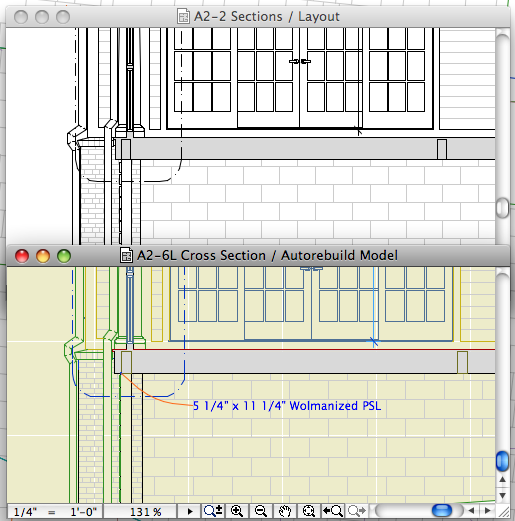
        <![CDATA[<p>This has got to stop.</p>

<div class="captionclear">
<img src="/images/labelgone.png" alt="Vanished label" /><br />
</div><br />]]>
        
    </content>
</entry>

</feed>