On Land

Environment Information
At Rill & Decker Architects we run ArchiCAD on Mac OS X. If you work at Rill & Decker, this is your stuff. If you don't, but you work in ArchiCAD, you may find something interesting. Anybody else, I don't know.
RSS

Object Downloads: Information and Disclaimer

Most parts are customized for the practice of our office. It may be that they are totally not how you would do something. But if they are useful, it's no skin off me for you to try them out. Anything that would be skin-off obviously won't be offered here.

Objects are provided as-is. That said, I'm willing to entertain suggestions for improvements and fixes. If they are easy/valuable improvements or critical fixes, I'll do them. The final arbiter of these matters is, natch, me.

All objects are AC10, unless noted otherwise.

Chances are, attribute defaults (pens, materials, etc.) will be way off. You should change the defaults to meet your standards and save the object over if you like.

The 'location' refers to our in-house library structure and won't mean anything to folks on the outside.

All objects are Creative Commons BY-NC unless noted otherwise. Briefly, this means share=OK, alter=OK, but you must give credit and you can't make money. May I ask that if you do wish to pass something along that you give the person a link to this site rather than the thing itself. I like to keep informal track of such things.

If you really like something, drop me a line.

Unless I forgot to put it in, there should be a link to the relevant On Land post in the comment script. In the object settings, click the Comments button (the last one next to the preview window), and then the planet button.

Most objects on offer will be to the simpler end of the scale, with few if any macros. If there's a macro involved it will be included in the zip or noted in the post with a link.

Silo Top JM11

Glass Lines JM11

Battens JM11

Barrel Ceiling JM11

Cutline JM10

Date Text JM9

Niche Cutter JM9

CenterLine Sym JM9

Shape Tag JM9

Slab Elev JM9

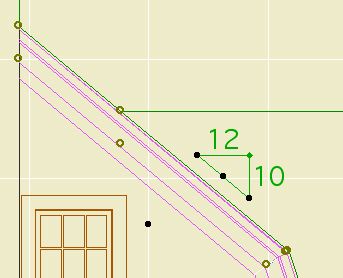
Roof Slope JAM9

CenterPoint JAM9

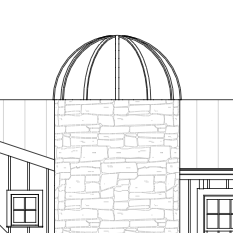
Silo Top
Since I've needed a silo top object one time in ten years, there's a chance that among a group of people larger than just me someone will need a silo top object at least one time in the next ten.

Download (AC11)

Glass Lines
Location: 01 General / 1 Graphic Symbols

Another one for the well-under-4KB* series...

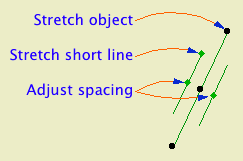
The length of the object is the length of the long line. The length of the short line is set by the Short Line Factor parameter. You can adjust this factor graphically. The spacing of the lines is controlled by the Spacing parameter. Also graphi-justable.

This is a good one to place with the rotate and stretch geometry method (fourth button). With this method I had an intermittent glitchy behavior where the object would appear offset from my clicks, but I couldn't reproduce it.

I wanted to add this symbol to our doors and windows directly, but I don't think it's possible to force the lines to tilt rightward in every case, once you factor in the orientation of the door and the viewpoint and all that.

Download (AC11)

* Until you add the preview image.

Location: 06 Wood & Plastic / Trim & Moulding

A series of battens for board and batten siding. There are parameters for Width, Thickness, and Spacing. For a single batten, set the spacing to zero.

In order that you can do a whole wall with one Battens object, you can have up to eight Holes in the batten arrangement. Turn on as many holes as you need and fit them to the windows and doors. You can do this in section or elevation using the editing hotspots.

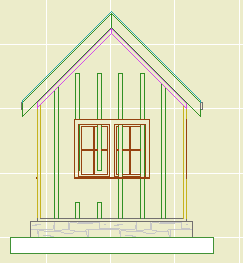
Battens 1
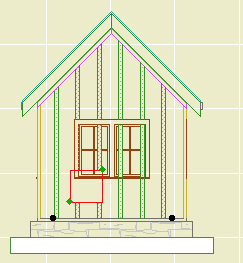
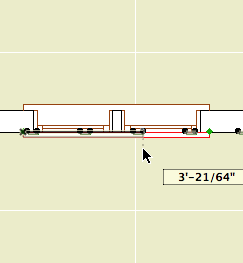
This is an excellent throw-down-and-fix situation. I placed the object along the wall in plan. Now I can fine tune it in elevation. Note the gap in those two battens; that's one hole.

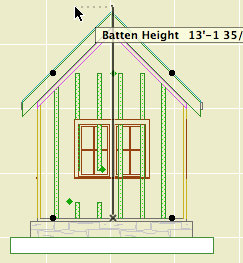
Battens 2
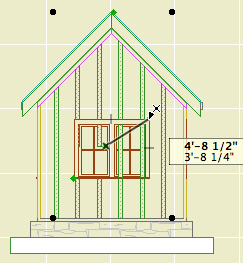
You can stretch the height using the editing node at the center of the top. The ordinary nodes at the ends won't work, don't ask me why.

Use solid ops to trim the battens to the roofs.

Battens 3
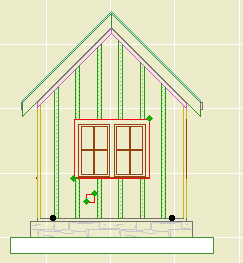
Each hole has two editing nodes. The lower one moves the hole, and the upper one stretches its height and width. The red box shown here is optional; turn on the Show Holes parameter if it makes it easier. You can still edit the hole if the box is not shown.

Battens 4
Position the hole first, then stretch it. In most cases, you'll do this by detecting the intersections at the casing corners.

Battens 5
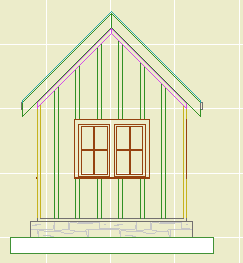
So that's that.

Battens 6
If you need another hole, turn it on by increasing the Holes parameter. By default, additional holes will appear at a small size at the bottom of the object.

Battens 7
With Show Holes on, the holes are also visible in plan. But to align the holes precisely (not to mention vertically), you need to work in section or elevation. Hole editing will also work in the 3D window, but you won't be able to snap to the casings very effectively.

Download (AC11)

Location: 13 Special Construction

For modeling a vaulted ceiling under a flat ceiling or a gable roof.

Barrel ceiling section
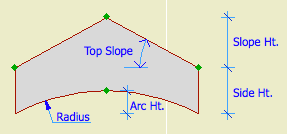
Heights are editable in 3D and section.

Turn on the Ellipse parameter for an elliptical curve. Other wise it's a simple arc.

With the Model View Options in 'ceiling mode', the object can use the optional ceiling pen, linetype, and cover fill. (Use the layer F Trim Crown, which shows in RCP and section/elevation combinations.)

Barrel ceiling in RCP

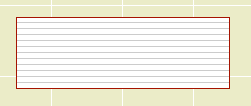
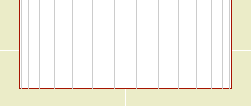
The Arc Lines option will draw lines with variable spacing to illustrate the curve:

Barrel ceiling arc lines

You can use the arc lines as a 2D-only symbol by turning the Model parameter off.

Download (Requires Slope macro)

Location: 01 General / 1 Graphic Symbols

UPDATE: Backsaved version for AC9.

Same features as the AC9 version, with a simplified interaction for getting the loop off center.

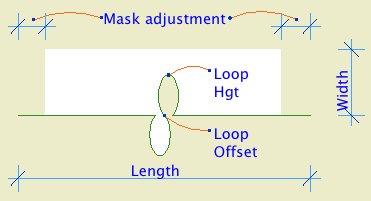
Cutline JM10

More»

Date Formats
Options
Location: 01 General / 1 Graphic Symbols

A text object for writing the date.

If Auto Update is on, the date will be read from the system. (Tip: turn it on and then off to get today's date while keeping it from updating by itself tomorrow.) The Year, Month, and Day can be set manually using the pulldowns.

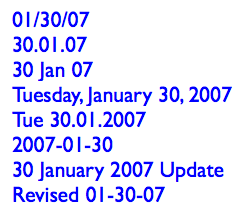
There are a lot of Date Format options. I've tried to cover all the conventions that I know of.

Any of the formats with a separator character will use the character given in Date Separator. You can choose from the list or make something up.

Two-Digit Day will zero-pad single digit days.

Day of Week can be on or off. If it's on, it will be read automatically along with the rest of the Auto Update. It will not fix itself for a manually set date. (It doesn't know the 30th is a Tuesday.) The Format of the day of the week can be long or short. Note that the list will always give the short form. The day of the week can be followed by an arbitrary separator, where the default is a comma.

You can add Leading or Trailing Text.

Text Formatting: All the usual suspects. Font, size. (You can choose mm or points to define the units.) Bold, italic, underline. The object can be anchored by any of the nine typical text block spots, using the Horizontal and Vertical Anchor parameters. You can have a Background Pen and the Outline Pen. Setting either one to zero turns it off. Finally, you can set the Padding between the text and the background/outline polygon. (This uses the same units option as the text size.)

Non-locals who would like to try it out can download it here.

Niche
Location: 13 Special Construction

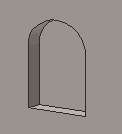
A rectangular or arched shape for subtracting niches into walls.

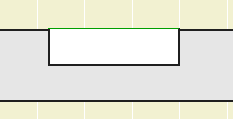
If the Arch Height is zero, the top is flat. The Wall Pen draws a heavy line around the back of the niche, to match the weight of the wall's contour.

The side with the center node should go along the edge of the wall. That side is drawn with the object's pen.

The idea is to SEO subtract the object from the wall, as discussed here. You can use a window to cut a niche, but the subtraction gives you better display control.

You would typically place the object on the layer X SEO Show2. This is the layer for SEO operators that show in plan only. (In 3D views, you would see the niche, but not the operator itself.)

You might need to bring the object forward to make sure it masks the wall. The parameter Edge Nudge helps make sure the lighter edge line of the object covers the heavier wall contour line underneath. Turn on True Line Weights to check it, and increase the nudge as needed.

Niche cutter plan

Download (AC10)

image

Location: 01 General / 1 Graphic Symbols

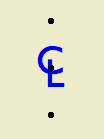
If you're local (in the same room), this won't make much difference to you. I have generalized the old CL symbol so I can offer it for download on the new Archicad Talk Object Depository. This means I'm enabling flexibility which I, and the locals, don't need.

For everyone else. This is your basic CL symbol, since most fonts don't have it. You can change the font and size, and apply bold formating. Now I'll copy and paste the helpful commenting from the 2D script:

!! The default font is Arial, since that
!! seems to be the default font of the
!! universe. If you have Gill Sans, use
!! that. It looks best IMO. It's the font
!! in the preview image. Full disclosure:
!! I'm not into the faux-hand lettering
!! thing.

!! If you put in a custom font, and you're
!! graphically particular, you might need to
!! adjust the Text Offsets to get the right look.

!! The top & bottom hotspot offset is
!! proportional to the point size. I don't
!! know what happens with very large sizes;
!! you might need to adjust 'spotY' as well.
!! Personally, I never mess with the size; I just
!! put it in for completeness.

!! Why aren't the offsets parameterized?
!! Because you shouldn't change them for
!! specific instances. They should be standards
!! that are invisible in regular use.

Placement tip: Set the object to insert by the top or bottom hotspot, and use the Rotated geometry method of the object tool.

Download (AC9)

Location: 01 General / 1 Graphic Symbols

Shape Tag
A shape with a text block in it. The old version was called 'Character+Shape'; it only had a few shapes.

This one has square, rectangle, triangle, circle, ellipse, oval, diamond, and hexagon.

The rectangle, oval, and hexagon will elongate to accommodate the text, if the Stretch for Text parameter is on. The square will turn into a rectangle.

The Height parameter refers to the vertical dimension. The Length Factor parameter is multiplied by the height to get the length of the rectangle, ellipse, and oval shapes. If Stretch for Text is on, the length is overridden by the text length.

The text, by default, is the global ID of the object. You can also choose to enter a custom text.

The size of the text can be set by points, millimeters, or as a fraction of the shape height. All these parameters are hooked together, so when you switch among them the actual height stays the same.

There is a value list for the font, and you can enter any font name. The text can be shown bold, italic, underlined, or any combination.

Update 2007-12-13: The Mask parameter will make the shape opaque white, using the 'Solid' Fill and White Pen parameters.

I'm making this object available for download on ArchiCAD-Talk. (Hence the mm size option.)

Or download here.

A label to show the elevation of the top or bottom of a slab.

It works in plan or in section, and changes its form depending on which kind of window it's in. It can give the elevation to project zero or the home story of the slab.

I made it in an attempt to overcome one of the big limitations of the Level Dimension tool: It can't read the bottom of an element. If you can read the bottom of an element, you can show live ceiling height dimensions in the RCP. I'm also attempting to overcome one of the big limitations of the level version of the regular dimension tool in section: It isn't truly associative and doesn't move when the slab does.

In creating this label, I discovered and did mortal combat with several disabilities in ArchiCAD, and especially in the label functionality. In the end, it doesn't do nearly what I want it to, but it's (mostly) not my fault. The section version works well for showing ceiling heights, as long as the slab is on the same story as the room. To use the plan version in RCP, my original primary goal, involves additional layers, or commits me to fussier modeling of ceilings than is otherwise needed, and is tedious to maintain.

(I wrote a mini-white-paper mapping the related ArchiCAD disabilities on ArchiCAD Talk, if you're interested, here it is.)

So even though the plan version has three broken legs, the section version is passable, so here it is.

Use it as an associated label, of course. Choose to label the top or bottom, to project zero or the home story zero.

In plan, you should only use it to label the bottom of a slab; for the top, the level dim is far superior, since it can read hidden elements.

The plan text can moved anywhere, and will flip around depending on what quadrant it's in. Sorry about the separate X & Y editing hotspots, for some reason they can't coincide in labels. I regrouped and got it working; the current version is for AC10 or above.

When placing the label in section, it will always appear at the lower left corner of the slab. If you are dimensioning the top, you need to move the label manually.

Download (AC10)